





Did you know that over 300 billion junk messages circulate globally every single day? This staggering volume clutters your digital life and exposes you to dangerous phishing threats. Taking control of your inbox is essential for maintaining both your productivity and your online security.
This guide provides practical steps for users in the United States to manage their digital correspondence effectively. You will learn how to mark an email as spam, report junk, block persistent senders, and unsubscribe from mailing lists. By mastering these tools in Gmail or Outlook, you can significantly reduce digital noise and protect your personal data.
Consistent action, including knowing how to mark an email as spam, creates a cleaner environment for your daily communication. Follow these instructions to reclaim your time and stop unwanted emails from reaching your primary folder ever again.
Key Takeaways
- Identify and report junk messages to train your provider’s filters.
- Use the block feature to prevent persistent senders from contacting you.
- Unsubscribe from legitimate newsletters to reduce daily clutter.
- Enhance your overall security by avoiding interactions with suspicious links.
- Maintain a pristine inbox by performing regular maintenance on your folders.
Protect Your Inbox From Spam
Take control of unwanted messages today. Learn practical email security strategies to reduce spam, block suspicious senders, protect personal information, and maintain inbox clarity.
Why Marking Spam Matters for Your Inbox and Security
A cluttered inbox is not just an annoyance; it is a potential security vulnerability. Many users view inbox management as a simple chore, but it is actually a critical component of your overall digital defense strategy. By treating organization and safety as connected goals, you can significantly reduce your risk profile.
How spam affects your time, focus, and inbox organization
Every day, you likely receive dozens of promotional messages that demand your attention, making how to mark an email as spam an important inbox management skill. These repetitive emails create unnecessary digital noise, making it difficult to spot important communications from colleagues, banks, or family members. Prioritizing a clean inbox allows you to reclaim your focus and ensures that you never miss a critical update.
When your inbox is filled with clutter, your productivity suffers, so learning how to mark an email as spam can help reduce unnecessary distractions. You spend valuable time sorting through junk instead of engaging with meaningful content. Implementing effective email security tips helps you maintain a streamlined workflow and keeps your digital workspace organized.
How unwanted messages can expose you to phishing and malware
Not all junk mail is merely a nuisance; some messages are designed to deceive you. Cybercriminals often use sophisticated tactics to impersonate legitimate brands, hoping you will click a malicious link or download a harmful attachment. These threats can lead to identity theft or the compromise of your personal financial accounts.
By failing to address these messages, you leave the door open for attackers to target you repeatedly, which is why knowing how to mark an email as spam is important. Recognizing that unexpected requests for payments or sensitive credentials are security risks is essential. When you proactively manage your incoming mail, you minimize the chances of falling victim to these dangerous schemes.
When to delete, unsubscribe, block, or report an email as spam
Knowing how to mark an email as spam and handle different types of unwanted mail is a key skill for any user. You should use the following guidelines to keep your account safe:
- Delete: Use this for one-off messages that are clearly irrelevant but not malicious.
- Unsubscribe: Choose this for legitimate newsletters or marketing lists you no longer wish to receive.
- Block: Apply this to persistent senders who continue to flood your inbox despite your efforts to opt out.
- Report: You must report email as spam when you encounter phishing attempts, suspicious links, or unsolicited messages that appear fraudulent.
Taking these steps consistently is one of the most effective email security tips available. When you properly categorize your mail, you help your provider’s filters learn to protect you and others from future threats.
How to mark an email as spam
Learning how to mark an email as spam is a vital skill for maintaining digital hygiene. By taking a proactive approach, you ensure that your inbox remains a productive space free from clutter and potential threats.
Identify the message you should report
Before learning how to mark an email as spam, verify that the message is truly unsolicited or suspicious. Look for signs like generic greetings, urgent demands for personal information, or unfamiliar sender addresses.
If the email is a legitimate newsletter you no longer want, consider unsubscribing instead of reporting it. However, if the content appears malicious or completely unknown, you should report email as spam immediately.
Use your email provider’s Spam or Junk command
Most modern email platforms feature a dedicated button that makes it easy to learn how to mark an email as spam and handle unwanted messages. You will typically find this command in the top toolbar or within a secondary menu labeled with three dots.
Look for icons that resemble an exclamation point inside a stop sign or a folder labeled “Junk.” Clicking this button tells your provider to move the message out of your sight and into a restricted folder.
Confirm that the message moved out of your inbox
After you trigger the command, the email should disappear from your primary view instantly. If the message remains, refresh your browser or app to ensure the action processed correctly.
Checking your inbox status after learning how to mark an email as spam provides peace of mind that the filter is working. Consistent verification helps you maintain a clean and organized digital environment.
Understand what happens after you report spam
When you report email as spam, you do more than just hide a message. Your email provider uses this data to train its automated filters to recognize similar patterns in the future.
This collective effort helps protect other users from receiving the same junk mail. Knowing how to mark an email as spam correctly contributes to a safer internet experience for everyone.
How to Mark an Email as Spam in Gmail
Managing your inbox effectively requires knowing how to mark an email as spam in Gmail. By utilizing the built-in tools provided by Google, you can quickly filter out unwanted noise and keep your primary inbox focused on important communications.
Report a message as spam on Gmail for the web
When you are using a desktop browser, you can easily learn how to mark an email as spam and report email as spam with just a few clicks. Simply open the message you wish to flag and look for the exclamation mark icon in the top toolbar.
Clicking this icon will move the message to your Spam folder and help Google improve its filtering algorithms. Alternatively, you can right-click any message in your inbox list and select the option to report it as spam directly from the context menu.
Mark an email as spam in the Gmail mobile app
If you are on the go, the mobile app makes it simple to how to mark an email as spam. Open the specific email and tap the three-dot menu icon located in the top right corner of the screen.
From the dropdown list, select the “Report spam” option. This action immediately removes the message from your inbox and alerts the system to the sender’s behavior.
Report multiple unwanted messages at once
You do not need to handle every message individually when learning how to mark an email as spam if your inbox is cluttered. You can select multiple emails by clicking the profile icons or checkboxes next to each message in your list.
Once you have selected all the unwanted items, click the exclamation mark icon at the top of the page. This bulk action is an efficient way to clean your inbox in seconds.
Use Gmail’s phishing-reporting option for suspicious messages
It is important to distinguish between standard marketing spam, how to mark an email as spam, and dangerous phishing attempts. If you receive an email that tries to steal your credentials, first understand how to mark an email as spam, then use the “Report phishing” option instead of the standard spam button.
“Security is not just about blocking junk; it is about identifying the intent behind the message to protect your personal data from sophisticated threats.”
Check the sender, links, and attachments before interacting
Before you click anything, always verify the sender’s email address to ensure it matches the official domain of the company. Hover your mouse over any links to see the actual destination URL before you click.
Avoid downloading attachments from unknown sources, as these often contain malware. Use the following table to understand which action to take based on the message type:
| Message Type | Primary Action | Security Level |
|---|---|---|
| Promotional Newsletter | Unsubscribe or Spam | Low Risk |
| Unsolicited Sales | Report Spam | Moderate Risk |
| Suspicious Login Alert | Report Phishing | High Risk |
| Unknown Attachment | Delete/Report | Critical Risk |
How to Mark an Email as Spam in Outlook
You can easily maintain a clutter-free experience by mastering how to mark an email as spam in Outlook. Whether you are using a desktop client or a web browser, Microsoft provides specific tools to help you filter out unwanted noise and protect your digital workspace.
Report junk email in Outlook on the web
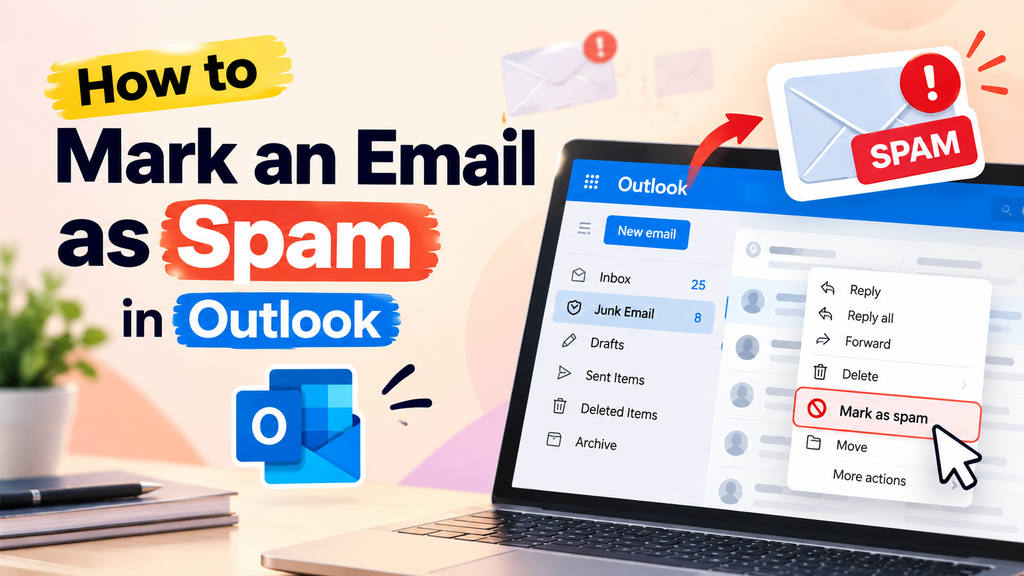
When you access your account through a browser, learning how to mark an email as spam makes managing your inbox straightforward. Select the message you wish to remove, then click the “Junk” button located in the top toolbar. You can choose to report the sender as junk, which helps the system learn your preferences over time.
Move unwanted messages to Junk Email in Outlook for Windows
If you prefer the desktop application, you can quickly learn how to mark an email as spam by using the ribbon menu. Simply highlight the message and click the “Junk” icon in the “Delete” group. This action automatically moves the item to your Junk Email folder and helps train the internal filter.
Mark an email as spam in the Outlook mobile app
Managing your inbox on the go is just as simple. Open the message, tap the three-dot menu icon in the top right corner, and select “Move to Junk.” This ensures that you know how to mark an email as spam in Outlook even when you are away from your computer.
Report phishing separately from ordinary marketing spam
It is vital to distinguish between annoying newsletters and dangerous threats. When you report email as spam, consider the nature of the message. If you receive a suspicious email asking for passwords or financial details, use the “Report Phishing” option instead of the standard junk button. This alerts Microsoft to potential security breaches and helps protect other users from similar attacks.
Review Outlook’s blocked and safe sender settings
Sometimes, legitimate emails end up in the wrong folder, or persistent spam continues to bypass your filters, making it important to understand how to mark an email as spam correctly. You should regularly review your blocked and safe sender lists to ensure your settings are accurate. To manage these, navigate to your mail settings and look for the “Junk email” section. Here, you can manually add addresses to your block list or ensure that important contacts are marked as safe to prevent future delivery issues.
How to Mark an Email as Not Spam
Even the most advanced email systems occasionally make mistakes by flagging valid mail as junk, so knowing how to mark an email as spam can help you manage your inbox more effectively. When a message you expect is missing, it is likely sitting in your filtered folders. Knowing how to mark an email as not spam is just as important as knowing how to filter out unwanted messages.
Restore a legitimate message from the Spam or Junk folder
If you find a valid email in your junk folder, you must move it back to your inbox after learning how to mark an email as spam and properly manage unwanted messages. Simply opening the message and selecting the option to move it will often suffice. This action signals to the system that the sender is trustworthy.
Use the Not Spam or Not Junk command in Gmail
In Gmail, you can easily correct misclassified messages. Open your Spam folder and select the email you wish to recover. Click the “Report not spam” button at the top of the screen. This process is much more effective than just dragging the email to your inbox, as it helps the system learn how to mark an email as spam in gmail more accurately in the future.
Use Outlook’s Not Junk option to recover a valid email
Outlook users can also quickly rectify filtering errors. Navigate to your Junk Email folder and select the message in question. Click the “Not junk” button located in the top ribbon or toolbar. This command tells Outlook that the sender is safe, which is a key part of understanding how to mark an email as spam in outlook without losing important correspondence.
Add trusted senders to your contacts or safe sender list
To prevent future issues, you should proactively manage your address book after learning how to mark an email as spam. Adding a sender to your contacts list acts as a whitelist for most email providers. By doing this, you ensure that future messages from that person bypass the junk filter entirely.
Check filtered folders when expected messages do not arrive
If you are waiting for a receipt or an account notice that never appears, knowing how to mark an email as spam can help you manage unwanted messages without missing legitimate correspondence. Always check your Spam or Junk folders first. Sometimes, automated systems trigger false positives, and learning how to mark an email as spam or not spam is the best way to maintain a healthy, organized inbox.
How to Stop Unwanted Emails at the Source
Stopping unwanted emails at the source is the most effective way to reclaim your time and focus. By addressing the root of your inbox clutter, you reduce the need for constant manual filtering. Taking these proactive steps ensures that your digital space remains organized and secure.
Unsubscribe from legitimate newsletters and promotional lists
Most reputable companies provide a clear way to opt out of their marketing communications. You should look for the unsubscribe link, which is typically located at the very bottom of the email. Clicking this link allows you to manage your preferences or remove your address from their mailing list entirely.
Consistency is key when you want to stop unwanted emails from cluttering your day. If you find yourself receiving frequent updates from a brand you no longer support, take a moment to unsubscribe immediately. This simple action prevents future messages from ever reaching your inbox.
Use the unsubscribe link without opening suspicious messages
Exercise caution when dealing with emails that look questionable or unsolicited. If an email appears to be a phishing attempt, do not click any links, including the unsubscribe button. Interacting with these messages can confirm your email address is active, which often leads to an increase in spam.
“Digital hygiene is not just about cleaning up your inbox; it is about protecting your identity and your time from those who seek to exploit your attention.”
Contact reputable companies through their official websites
If you are unsure about the legitimacy of an email, avoid replying directly to the sender. Instead, navigate to the company’s official website through your browser. You can often find contact information or account settings there to manage your communication preferences safely.
This method ensures that you are interacting with the actual service provider rather than a malicious actor. It is a safer alternative to clicking links within emails that might contain hidden threats or tracking pixels.
Stop sharing your primary email address unnecessarily
Prevention remains the best strategy to stop unwanted emails before they start. Be mindful of where you enter your primary email address when signing up for online services or retail discounts. Consider using a secondary email account for newsletters, shopping, or temporary registrations.
| Strategy | Best For | Risk Level |
|---|---|---|
| Official Unsubscribe Link | Trusted Brands | Low |
| Direct Website Login | Account Management | Very Low |
| Reporting as Spam | Malicious Senders | Medium |
| Ignoring/Deleting | Unknown Senders | Low |
By limiting the exposure of your main address, you significantly decrease the volume of junk mail you receive. Protecting your primary contact information is a fundamental practice for maintaining a clean and efficient inbox over the long term.
How to Block Persistent Senders
When a specific sender refuses to take the hint, you need a more aggressive strategy to regain control of your inbox. While standard reporting tools are helpful, they do not always guarantee that a persistent sender will be silenced immediately. Taking the time to manually block these sources is often the best way to stop unwanted emails for good.
Stop Unwanted Emails Before They Pile Up
Ready for a cleaner inbox? Apply these simple strategies to unsubscribe from legitimate lists, block persistent senders, and prevent unnecessary messages from returning.
Block an email address in Gmail
Gmail makes it simple to cut off communication from specific addresses. Open the message from the sender you wish to block and click the three-dot menu icon located in the top right corner of the email window. Select the option labeled Block [Sender Name] from the dropdown list.
Once you confirm this action, all future messages from that address will be automatically sent to your Spam folder. This ensures you no longer see their content in your primary inbox.
Block a sender in Outlook
In Outlook, you can manage persistent senders by right-clicking any message in your list. Navigate to the Security or Junk menu and choose the Block Sender option. This action immediately adds the address to your blocked senders list.
If you are using the mobile app, tap the three dots within the email and select Block Sender. This is a highly effective way to stop unwanted emails that continue to bypass your standard filters.
Understand the difference between blocking and reporting spam
It is important to recognize that blocking and reporting are not the same thing. Reporting spam sends a signal to your provider’s global filters, helping to protect other users from the same threat. Blocking, however, is a personal preference that only affects your specific account.
“Digital hygiene is not just about cleaning your inbox; it is about setting boundaries for who gets access to your attention.”
| Action | Primary Goal | Scope |
|---|---|---|
| Reporting Spam | Train global filters | Protects all users |
| Blocking Sender | Personal silence | Affects only you |
| Unsubscribing | Remove from list | Legal compliance |
Use filters for recurring messages that bypass spam detection
Sometimes, senders change their display names or subjects to evade automatic detection. When this happens, you can create custom filters to stop unwanted emails based on specific patterns. You can set a rule to automatically delete any message containing certain keywords or originating from a specific domain.
By building these rules, you take a proactive stance against persistent senders. This ensures that even if they try to bypass your spam folder, your inbox remains clean and organized.
How to Create Email Filters and Rules
If you find yourself deleting the same types of emails daily, it is time to use filters. While knowing how to mark an email as spam in gmail or how to mark an email as spam in outlook is helpful, these tools do not always catch recurring newsletters or specific promotional campaigns. Filters allow you to automate your inbox management by setting specific criteria for incoming messages.
Filter messages by sender, subject, or keywords
You can define exactly which emails trigger an automated action. By focusing on the sender’s address, the subject line, or specific keywords within the body, you gain granular control over your inbox. Setting these parameters ensures that only the messages you truly want to see remain in your primary view.
Automatically archive, delete, or label recurring messages
Once you define your criteria, you must choose an action. You can instruct your email provider to automatically move messages to the trash, archive them for later reading, or apply a specific label for better organization. This proactive approach keeps your workspace clean without requiring manual intervention for every single message.
Build Gmail filters for newsletters and promotional email
In Gmail, you can create filters directly from the search bar. Simply enter your search criteria, click the filter icon, and select “Create filter.” You can then choose to skip the inbox, apply a label, or delete the message entirely to maintain a clutter-free environment.
Create Outlook rules for unwanted senders and mailing lists
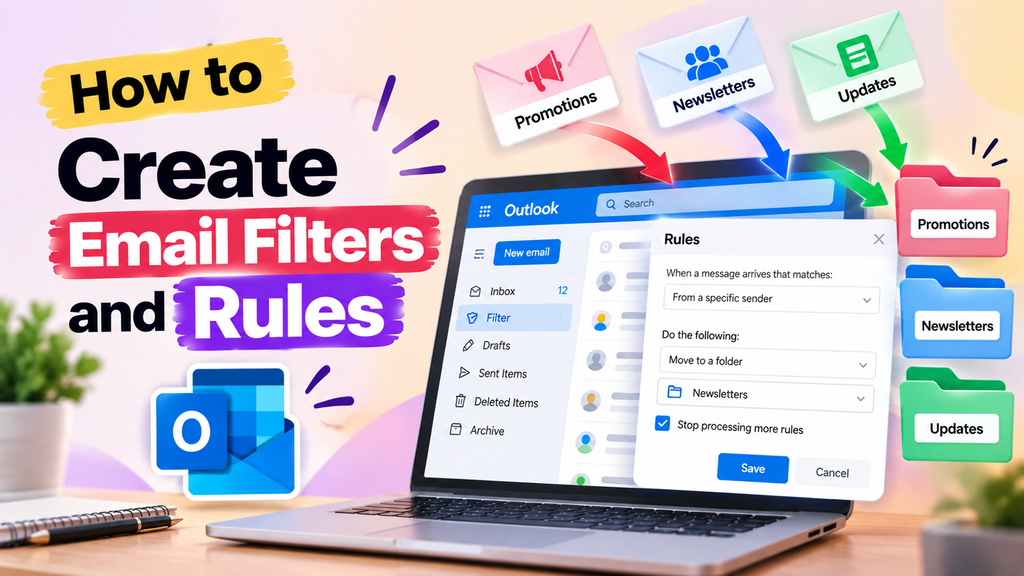
Outlook uses a feature called “Rules” to manage incoming traffic. You can access this through the settings menu to create conditions based on specific senders or keywords. These rules act as a permanent gatekeeper for your inbox, ensuring that unwanted content is handled immediately upon arrival.
Test new rules to avoid losing important messages
Always verify your new rules before applying them to your entire inbox. A poorly constructed filter might accidentally catch legitimate correspondence. Start by applying the rule to existing messages to see if it captures the correct items before setting it to run automatically on new mail.
| Feature | Gmail Filters | Outlook Rules |
|---|---|---|
| Primary Trigger | Search Criteria | Sender/Subject/Body |
| Action Options | Label, Archive, Delete | Move, Delete, Flag |
| Setup Ease | High | Medium |
| Best Use Case | Newsletter Sorting | Persistent Senders |
How to Recognize Spam, Phishing, and Dangerous Messages
Protecting your digital life starts with knowing how to spot a malicious email before you interact with it. While modern filters catch most junk, some threats still slip through the cracks. Applying these email security tips will help you maintain a safer inbox and protect your sensitive data from cybercriminals.
Spot urgent requests for passwords, payments, or personal information
Attackers often create a false sense of urgency to bypass your critical thinking. They may claim your account is locked or that a payment is overdue to force a quick reaction. Never provide passwords, credit card numbers, or social security details in response to an unsolicited email.
Inspect sender addresses and misleading display names
A familiar display name, such as “Bank of America” or “Amazon Support,” does not guarantee the message is authentic. Always click or hover over the sender’s name to reveal the actual email address. If the domain looks strange or does not match the official company website, treat it as a potential threat.
Check links safely before clicking them
Before you click any link, hover your mouse cursor over it to see the destination URL. If the link points to a suspicious website or a long string of random characters, avoid it entirely. Using these email security tips ensures you do not accidentally visit a site designed to steal your login credentials.
Handle unexpected attachments and impersonation attempts
Unexpected attachments are a common delivery method for malware and viruses. Even if an email appears to come from a colleague or a known brand, do not open files like PDFs or ZIP archives unless you were expecting them. Verify the sender’s identity through a separate, trusted channel if you feel unsure about the request.
Email Security Tips for a Cleaner, Safer Inbox
Strengthening your email security is a vital step toward a cleaner and more reliable communication experience. While spam filters are essential, they cannot catch every threat that targets your personal information. By adopting these email security tips, you create a robust defense that protects your data even if a malicious message manages to bypass your initial filters.
Use a unique password and enable multifactor authentication
Your password serves as the primary gatekeeper for your account. Always use a unique, complex password that you do not reuse on other websites to prevent credential stuffing attacks. Enabling multifactor authentication (MFA) adds a critical layer of protection, ensuring that even if a hacker discovers your password, they cannot access your inbox without a second form of verification.
Keep your browser, email app, and operating system updated
Software developers frequently release updates to patch vulnerabilities that hackers exploit to gain unauthorized access. You should enable automatic updates for your operating system, web browser, and email applications. These updates often contain vital security patches that keep your digital environment resilient against the latest threats.
Review account activity and connected applications
Periodically checking your account activity logs helps you spot suspicious logins from unfamiliar locations or devices. You should also audit the list of third-party applications that have permission to access your email data. Removing access for apps you no longer use minimizes the risk of a data breach occurring through a compromised service.
Protect your email address from public exposure
Spammers often harvest email addresses from public forums, social media profiles, and unsecured websites. To maintain a cleaner inbox, avoid posting your primary email address in plain text on public platforms. Using a secondary email address for newsletters or online shopping can help keep your main account private and free from unwanted clutter.
| Security Practice | Primary Benefit | Frequency |
|---|---|---|
| Multifactor Authentication | Prevents unauthorized access | Always Enabled |
| Software Updates | Patches known vulnerabilities | Weekly/Automatic |
| App Audit | Removes unnecessary permissions | Monthly |
| Password Rotation | Limits breach impact | Annually |
What to Do When Spam Keeps Reaching Your Inbox
When standard filtering fails to stop unwanted emails, you need a systematic troubleshooting process to regain control. It is common for sophisticated junk mail to bypass basic filters, but you can take specific steps to tighten your defenses. Following these email security tips will help you maintain a cleaner and more organized digital workspace.
Review your spam settings and blocked sender lists
Start by auditing your current configuration to ensure no rules are accidentally allowing junk through, and review how to mark an email as spam when necessary. Check your blocked sender list to see if you have inadvertently cleared it or if the spammer is using rotating addresses. Updating your filter criteria can often catch messages that previously slipped through the cracks.
Report repeated campaigns consistently instead of only deleting them
Many users make the mistake of simply deleting junk mail, which denies your provider the data needed to improve its algorithms. You must report email as spam every time a persistent sender appears in your inbox. This consistent feedback trains the system to recognize similar patterns and block future attempts from the same source.
Contact your email provider when filtering fails
If you notice a massive influx of specific, dangerous, or highly persistent spam, reach out to your email service provider. Most major platforms have dedicated support channels or community forums where you can flag widespread issues. Escalating the problem ensures that the provider can investigate potential security breaches or systemic failures in their filtering engine.
Know when creating a secondary email address may help
Sometimes, the best way to manage your inbox is to limit where you share your primary address. Consider creating a secondary account specifically for online shopping, newsletters, and public registrations. This strategy keeps your main inbox private and significantly reduces the volume of marketing messages you receive, making it much easier to stop unwanted emails from cluttering your personal space.
Make Your Email More Secure
Protect your inbox with smarter habits. Report suspicious messages, strengthen account security, and use filters to keep unwanted emails from disrupting your everyday workflow.
Conclusion
Taking control of your digital communication requires consistent effort and vigilance. You now possess the knowledge to manage your inbox effectively by knowing how to mark an email as spam when threats arise. This simple action protects your personal data from phishing attempts and malicious software.
You should remain alert to the differences between standard marketing messages and dangerous impersonation attempts. Always verify the sender before clicking any links or downloading attachments. If you accidentally flag a legitimate message, you can easily learn how to mark an email as not spam to restore your important correspondence.
Building a secure environment involves more than just filtering messages. Implementing essential email security tips like enabling multifactor authentication and keeping your software updated creates a strong defense against cyber threats. Regular account reviews ensure that no unauthorized applications have access to your private information.
Apply these strategies within Gmail or Outlook to stop unwanted emails from cluttering your workspace. Consistent management keeps your digital life organized and secure. Start refining your inbox habits today to enjoy a cleaner and safer online experience.
FAQs
How to mark an email as spam in Gmail across different devices?
To how to mark an email as spam in gmail on your desktop, select the message in your inbox and click the “Report spam” icon, which looks like a stop sign with an exclamation point. On the Gmail mobile app for Android or iPhone, open the message, tap the three dots in the top right corner, and select “Report spam.” This action helps Google improve its filters and keeps your primary inbox clean.
How to mark an email as spam in Outlook for web and desktop?
If you are looking for how to mark an email as spam in outlook, simply right-click the unwanted message and select “Junk,” then choose “Block Sender” or “Report as Junk.” In the Outlook mobile app, you can tap the three dots and select “Move to Junk.” This ensures that future messages from that specific sender are automatically diverted from your focused inbox.
Why is it better to report email as spam rather than just deleting it?
When you report email as spam, you are providing valuable feedback to your email service provider. While deleting a message removes it from your sight, reporting it helps systems like Microsoft and Google identify patterns used by scammers. This proactive step improves the global filter for everyone and reduces the likelihood of similar messages reaching your inbox in the future.
How to mark an email as not spam if a legitimate message is filtered?
To how to mark an email as not spam, navigate to your “Spam” or “Junk” folder and locate the legitimate message. In Gmail, click the “Not spam” button at the top of the email. In Outlook, select the message and click “Not Junk.” To prevent this from happening again, you should add the sender’s address to your contacts or “Safe Senders” list.
What is the most effective way to stop unwanted emails from legitimate retailers?
To stop unwanted emails from reputable brands you have previously interacted with, such as Best Buy or Target, the most effective method is using the “Unsubscribe” link typically found at the bottom of the email. However, you should only use this for known, legitimate companies; for suspicious or unknown senders, it is safer to report the message as spam to avoid confirming your email address is active.
What are the essential email security tips for protecting my personal information?
Some of the most critical email security tips include enabling multifactor authentication (MFA) on your account, using a unique and complex password, and never clicking on links or attachments from unknown senders. Always inspect the sender’s actual email address rather than just the display name to spot impersonation attempts by hackers pretending to be from institutions like Chase or PayPal.
What should I do if I accidentally click a link in a suspicious email?
If you interact with a potential phishing link, immediately disconnect your device from the internet and run a malware scan. Change your password for that specific account and any other accounts that share the same credentials. Monitor your financial statements and consider setting up credit alerts if you believe your sensitive data has been compromised.
How do email filters and rules help manage recurring unwanted messages?
Filters and rules allow you to automate your inbox management. You can set specific criteria, such as keywords in the subject line or specific sender domains, to have messages automatically moved to a folder, archived, or deleted. This is particularly useful for persistent newsletters or promotional content that bypasses standard junk filters but still contributes to inbox clutter.