
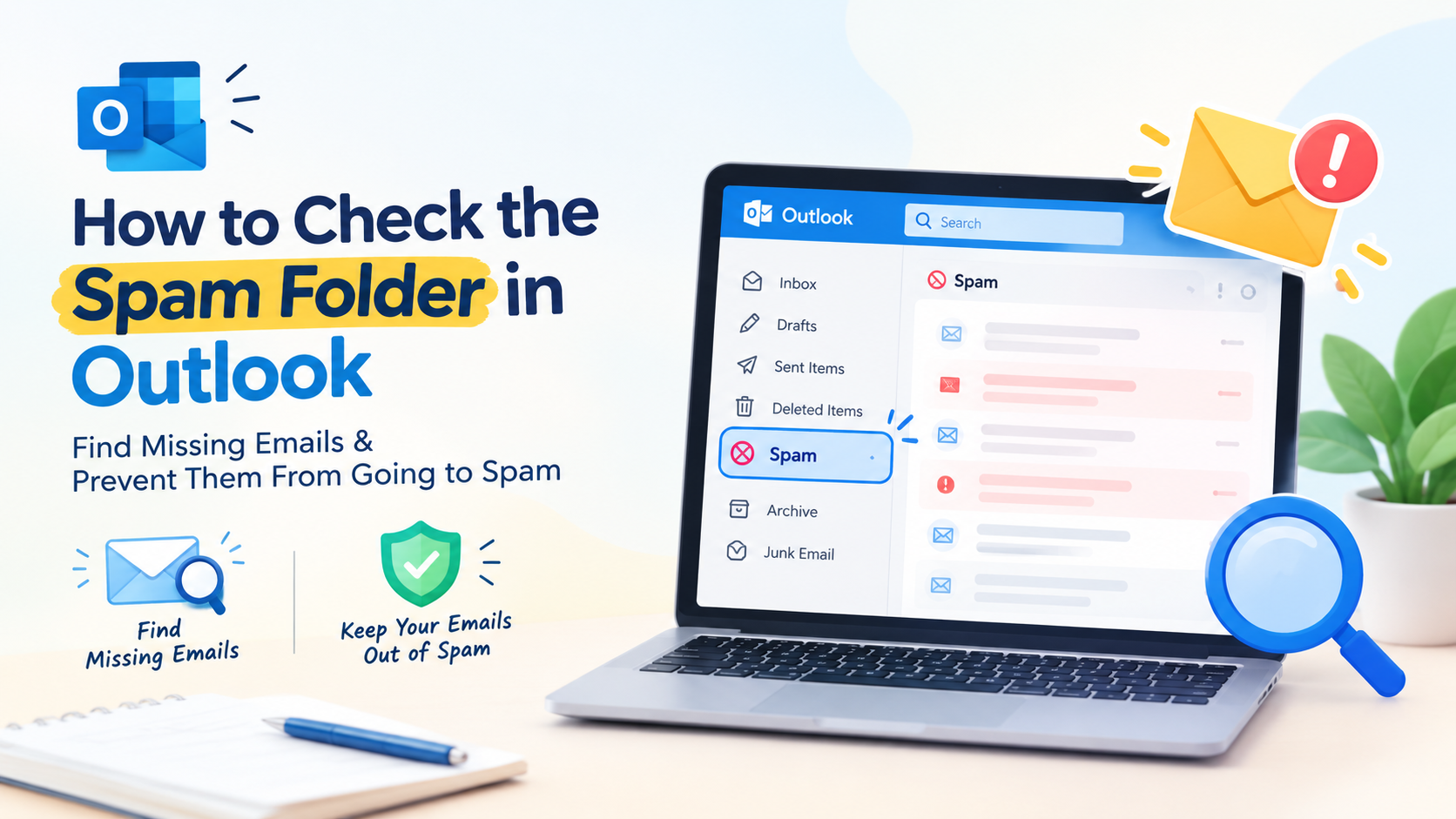





Have you ever wondered why an urgent message vanished before it even reached your inbox? It is a frustrating experience that leaves many professionals questioning their digital communication reliability.
While Microsoft labels these hidden messages as “Junk Email,” the result remains the same: critical correspondence gets buried. Learning how to check spam folder in Outlook is a vital skill for maintaining your workflow and ensuring you never miss a deadline.
This guide provides a practical walkthrough for locating these filtered items across various platforms. If you are specifically looking for how to check spam folder in outlook, this guide will show you where to find Junk Email and how to review messages safely. Whether you use the web version, the new Windows interface, or a mobile device, you will discover effective ways to recover misplaced data.
Beyond simple recovery, you will learn to adjust your filtering preferences to stop future errors. By mastering these settings, you gain full control over your inbox security and overall productivity.
Key Takeaways
- Understand the difference between Junk Email and standard inbox filtering.
- Locate missing messages across desktop, web, and mobile applications.
- Learn safe methods for inspecting suspicious content without risking your security.
- Adjust your account settings to prevent legitimate emails from being flagged incorrectly.
- Master the process of marking senders as safe to improve future delivery.
Master Your Outlook Inbox
Learn how to find missing emails, safely review Junk Email, restore legitimate messages, and adjust Outlook settings to prevent future delivery problems.
How to Check Spam Folder in Outlook
Managing your inbox effectively starts with knowing how to check spam folder in Outlook across different platforms. Because Microsoft offers several versions of its email client, the navigation path to your junk messages can vary significantly depending on whether you are using a web browser, a desktop application, or a mobile device.
In most cases, you will find the Junk Email folder located in the left-hand navigation pane when learning how to check spam folder in Outlook. If you do not see it immediately, the folder list might be collapsed or hidden behind a menu icon. Always verify that you are viewing the correct account if you have multiple mailboxes synced to your application. For anyone searching how to check spam folder in outlook, Outlook on the web provides a straightforward way to access filtered messages.
Open the Junk Email folder in Outlook on the web
When learning how to check spam folder in Outlook, start by looking at the folder list on the far left side of your screen. You may need to click the Folders header to expand the list if it is currently hidden. Once expanded, scroll down until you see the folder labeled Junk Email to understand how to check spam folder in Outlook.
Find the spam folder in the new Outlook for Windows
The new Outlook for Windows interface simplifies navigation by keeping your folders visible in a persistent sidebar. The new Outlook for Windows interface makes how to check spam folder in Outlook easier by keeping your folders visible in a persistent sidebar. Simply click on the Junk Email folder in the left-hand column to learn how to check spam folder in Outlook. If the sidebar is minimized, click the three-line menu icon to reveal your folder hierarchy.
View junk messages in classic Outlook for Windows
When you how to check spam folder in Outlook in the classic desktop version, your folders appear in the Folder Pane on the left. If you cannot locate the Junk Email folder, check if your account is expanded by clicking the small arrow next to your email address. You can also use the Folder tab in the top ribbon to manage your view settings.
Check the Junk folder in Outlook for Mac
Outlook for Mac displays your folders in a sidebar similar to other desktop versions, which helps you learn how to check spam folder in Outlook. Ensure your account is selected, then look for the Junk Email folder in the list. If you have multiple accounts, ensure you are checking the specific folder associated with the email address you are investigating.
Open the spam folder in the Outlook mobile app
When learning how to check spam folder in Outlook on mobile devices, remember that the interface is more compact to save screen space. Tap the Home icon or your profile picture in the top-left corner to open the sidebar menu. From there, tap on Junk Email to see your filtered messages and learn how to check spam folder in Outlook.
| Platform | Primary Navigation | Visibility Tip |
|---|---|---|
| Outlook Web | Left Sidebar | Expand “Folders” menu |
| New Windows | Left Sidebar | Use the three-line menu |
| Classic Windows | Folder Pane | Expand account arrow |
| Mobile App | Sidebar Menu | Tap profile icon |
Where to Find the Outlook Email Spam Folder
Many users often wonder where to find the spam folder in Outlook and how to check spam folder in Outlook when their expected emails do not appear in the inbox. It is important to note that Microsoft labels this directory as “Junk Email” rather than “Spam.” Recognizing this distinction makes it easier to learn how to check spam folder in Outlook without overlooking important messages.
Identify the Junk Email folder in the folder list
The Junk Email folder is typically located in the left-hand navigation pane of your Outlook interface. You can usually find it listed alongside your Inbox, Sent Items, and Deleted Items folders. Locating this folder quickly is the most effective way to learn how to check spam folder in Outlook and manage incoming messages that have been filtered by the system.
If you are unsure where to begin, learning how to check spam folder in outlook can help you quickly identify whether a missing message has been filtered.
Expand your mailbox when the folder is hidden
Sometimes, your folder list may appear truncated or collapsed, making it difficult to see all available directories. If you cannot see the Junk Email folder, look for a small arrow or chevron icon next to your primary email address. Clicking this icon will expand your mailbox and reveal all hidden subfolders, allowing you to learn how to check spam folder in outlook with ease.
Use Outlook search to locate missing messages
When how to check spam folder in Outlook does not help you locate a message, the search bar becomes your most powerful tool. You can type specific terms into the search box at the top of the application to scan your entire account. This method is particularly useful when learning how to check spam folder in Outlook, especially if you suspect a message was moved to a folder other than the Junk directory.
Search all folders instead of only the current folder
By default, Outlook may only search the folder you are currently viewing. To broaden your scope, ensure you select the “All Mailboxes” or “All Outlook Items” option in the search dropdown menu. This setting forces the application to look through every folder, including the Junk Email and Archive sections, to find your missing content.
Search by sender, subject, date, or keywords
Refining your search criteria significantly improves the accuracy of your results when you learn how to check spam folder in Outlook. You should combine specific details like the sender’s name, the subject line, or even a date range when learning how to check spam folder in Outlook.
Using these filters helps you pinpoint exactly where a message is stored, even if it was misclassified by automated filters. These search options make how to check spam folder in outlook easier when you are looking for a specific missing email.
| Search Method | Best Used For | Efficiency Level |
|---|---|---|
| Sender Name | Finding emails from specific contacts | High |
| Subject Keywords | Locating messages with specific topics | Medium |
| Date Range | Filtering by time-sensitive events | High |
| All Folders | Finding misplaced or archived items | Very High |
How to Check My Spam Folder in Outlook and Review Messages Safely
Learning how to check spam folder in Outlook effectively helps you recover lost mail while keeping your data secure. Because this folder often contains malicious content, you must approach your review with a high level of caution. Following specific security protocols ensures that you can identify legitimate messages without exposing your device to threats.
Sort and filter messages to find legitimate email faster
When you open your Junk Email folder while learning how to check spam folder in Outlook, start by organizing your view to make the process more manageable. You can sort messages by date or sender to quickly identify expected communications. This simple step helps you understand how to check spam folder in Outlook, ignore bulk junk mail, and focus on recent messages.
Check the sender address and message details
Never rely solely on the display name when evaluating an email. Attackers often spoof familiar names to trick you into believing a message is authentic. When you learn how to check spam folder in Outlook, always inspect the full email address to ensure the domain matches the organization it claims to represent.
Inspect links and attachments without opening suspicious content
When learning how to check spam folder in Outlook, if you suspect an email might be dangerous, avoid clicking any links or downloading attachments. You can hover your mouse cursor over a link to reveal the actual destination URL in the bottom corner of your browser or app. Verify that the link destination matches the expected website before taking any action.
Recognize phishing indicators in a message that appears trustworthy
Even when learning how to check spam folder in Outlook, remember that a message that looks like it comes from a trusted brand may still be a phishing attempt. Look for common red flags such as urgent payment requests, unexpected credential prompts, or unusual spelling errors. A professional tone does not guarantee that a message is legitimate.
| Feature | Safe Email | Phishing Attempt |
|---|---|---|
| Sender Address | Matches official domain | Mismatched or suspicious domain |
| Call to Action | Standard request | High urgency or threats |
| Links | Clear, recognizable URLs | Hidden or masked destinations |
| Attachments | Expected documents | Unexpected or unusual files |
Move a Legitimate Email From Junk to Your Inbox
When learning how to check spam folder in Outlook, if Outlook incorrectly flags a message, you have the tools to correct the filter and retrieve your data. Finding a vital communication inside your outlook email spam folder does not mean it is lost forever. If you know how to check spam folder in outlook, you can quickly review these messages and restore legitimate emails to your Inbox. You can easily restore these items to ensure your workflow remains uninterrupted.

Mark a safe message as Not Junk in Outlook
After you how to check spam folder in Outlook, the most effective way to handle a false positive is to use the built-in reporting tool. By selecting the message and clicking “Not Junk,” you provide the system with a clear signal that the sender is trustworthy.
This action does more than just move the email; it helps train the filter to recognize similar messages in the future. Consistent use of this feature significantly improves your overall email deliverability over time.
Move the message manually to the Inbox
If you prefer a direct approach, you can simply move email from junk to inbox using your mouse. Most versions of Outlook allow you to drag and drop the message directly into your primary folder list.
“Effective email management requires active participation from the user to ensure that important messages are never missed due to over-aggressive filtering.”
Confirm that the message was restored correctly
Once you have relocated the message, take a moment to verify that everything is intact. Sometimes, security settings may strip away certain elements during the filtering process.
Check whether images, attachments, and conversation history are available
Open the email to ensure that all components are visible. You should verify the following items:
- Check that all attachments are downloadable and not blocked.
- Ensure that embedded images load properly.
- Review the conversation history to confirm the thread is complete.
Reply to the sender only after verifying the message is safe
Before you hit reply, perform a quick check on the sender’s identity. Even if a message looks legitimate, it is wise to confirm the source independently if the email requests sensitive information or urgent action.
Security is a priority, so always double-check the sender’s actual email address rather than just the display name. Taking these small steps protects your account from potential phishing attempts that might have bypassed initial filters.
Report Spam, Phishing, and False Positives Correctly
Taking the right action when you find junk mail is essential for maintaining a secure and clean inbox. When you view spam folder in Outlook, you will likely encounter a mix of harmless newsletters, malicious threats, and occasionally, important messages that were misclassified. Knowing how to distinguish between these categories ensures that you keep your account safe while helping the system learn your preferences.
Protect Your Important Emails
Take control of your Outlook inbox with practical strategies for identifying phishing attempts, recovering legitimate messages, and improving email filtering without compromising security.
Use Report Junk for unwanted commercial email
When learning how to check spam folder in Outlook, if you receive unsolicited marketing emails or newsletters that you did not sign up for, you should use the “Report Junk” feature. This action tells Microsoft that the sender is sending unwanted commercial content. By choosing this option, you help the system identify similar messages in the future, effectively cleaning up your inbox.
Use Report Phishing for fraudulent or credential-stealing messages
When you encounter emails that attempt to steal your passwords or personal data, you must report phishing in Outlook immediately. These messages often impersonate banks, government agencies, or trusted services to trick you. Reporting these as phishing provides critical data to security teams, which helps protect other users from the same threat.
Do not interact with links before reporting suspicious messages
It is vital that you do not click any links, download attachments, or reply to suspicious emails before you report them. Interacting with these messages can confirm your email address to attackers or trigger malware installations. Always use the reporting tools first to ensure your safety.
Use Not Junk when Outlook incorrectly blocks a legitimate email
When you learn how to check spam folder in Outlook, remember that the system may sometimes flag a valid message from a colleague or a service you trust as spam. In these cases, you should select the “Not Junk” option. This action moves the email back to your inbox and informs the filter that the sender is safe, which prevents future misclassifications.
Understand how reporting affects future filtering
Every time you report spam in Outlook or mark an item as “Not Junk” while learning how to check spam folder in Outlook, you are training your personal filter. The system analyzes these reports to adjust its sensitivity and accuracy for your specific account. Consistent and accurate reporting is the best way to ensure that your inbox remains organized and secure over time.
| Action Type | Best Used For | Security Impact |
|---|---|---|
| Report Junk | Unwanted newsletters | Low risk |
| Report Phishing | Fraudulent attempts | High risk |
| Not Junk | Legitimate emails | Neutral |
Add Trusted Senders to Outlook’s Safe Senders List
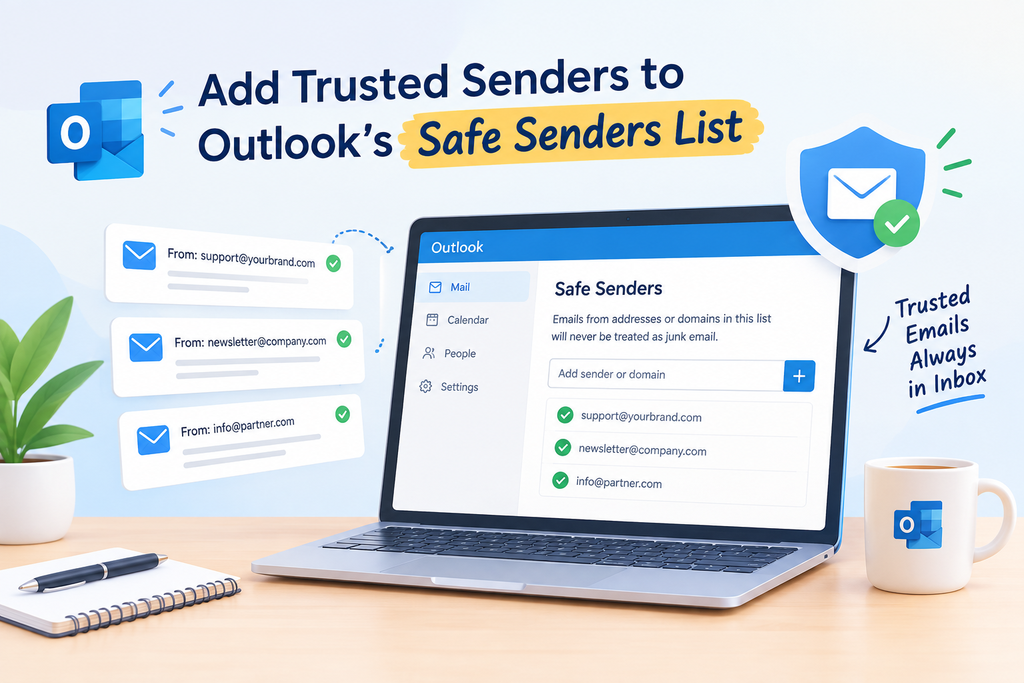
You can take control of your email delivery and learn how to check spam folder in Outlook by utilizing the Outlook Safe Senders List. While knowing how to check my spam folder in outlook is a vital skill, preventing legitimate messages from landing there in the first place is even better. By defining specific addresses as safe, you ensure that your most important communications bypass aggressive filters.
Add an individual email address to Safe Senders
Adding a specific contact is the safest way to ensure delivery. When you identify a sender as reliable, Outlook will prioritize their messages and keep them in your primary inbox.
Add a trusted domain when appropriate
Sometimes, you may want to allow all emails from a specific company or organization. Adding a domain to your list is a convenient way to manage trusted senders Outlook without adding every single employee address individually.
Configure Safe Senders in Outlook on the web
To update your settings in the web version, navigate to the Settings gear icon. Select “Mail” and then “Junk email.” Here, you can manually add addresses or domains to the “Safe senders and domains” section.
Configure Safe Senders in classic Outlook for Windows
In the classic desktop application, go to the “Home” tab and click the “Junk” button. Choose “Junk E-mail Options” and navigate to the “Safe Senders” tab. Click “Add” to input the email address or domain you wish to whitelist.
Use domain allowlisting carefully
While convenient, domain allowlisting is broader than adding a single address. It permits every message from that domain to bypass your filters, which could potentially expose you to unwanted content if that domain is compromised.
Allow only senders and domains you genuinely trust
Only add entities that you know and verify. Security best practices dictate that you should never whitelist a domain simply to save time if you do not have a direct relationship with the sender.
Review the list regularly and remove outdated entries
Your list of trusted senders Outlook should not be static. Periodically audit your entries to remove old contacts or domains that you no longer interact with to maintain a secure and efficient mailbox.
Prevent Important Emails From Going to Spam
Proactive management of your inbox, including learning how to check spam folder in Outlook, is the best way to ensure you never miss a critical message. By establishing clear habits, you can effectively prevent emails from going to spam and keep your communication channels open. Small adjustments to your daily routine often yield significant improvements in your overall digital experience.
Ask senders to use a consistent, recognizable address
Email filters often flag messages based on the reputation of the sender. If a business or contact frequently changes their display name or email domain, Outlook may perceive these shifts as suspicious activity. Encourage your regular contacts to maintain a consistent address to ensure reliable Outlook email delivery.
Add expected contacts before important messages arrive
One of the most effective ways to bypass aggressive filtering after learning how to check spam folder in Outlook is to add new contacts to your address book immediately. When you save a sender as a contact, you signal to the system that you trust their communications. This simple step acts as a digital handshake that validates future incoming mail.
Keep your mailbox organized so legitimate messages are easier to monitor
A cluttered inbox makes it difficult to spot when a message has been misdirected. By using folders and labels, you create a clear baseline for what your inbox should look like. When you maintain a tidy structure, you can quickly identify anomalies or missing threads that might have been diverted elsewhere.
Respond to and move valid messages to reinforce your preferences
Outlook learns from your behavior over time. When you actively move a message from the Junk folder to your Inbox, you are training the system to recognize that sender as safe. You should also use the “Not Junk” button to provide direct feedback to the filtering engine.
- Always move misclassified emails to the Inbox manually.
- Use the “Not Junk” feature to report false positives.
- Reply to important threads to establish a history of interaction.
Check Junk Email before time-sensitive events and deadlines
It is a smart practice to learn how to check spam folder in Outlook periodically, especially before major events. If you are expecting tickets, billing statements, or appointment confirmations, perform a quick scan of your Junk folder. This habit ensures that you stay informed even if a temporary filter change affects your incoming mail.
Review Outlook Rules That Move Messages Automatically
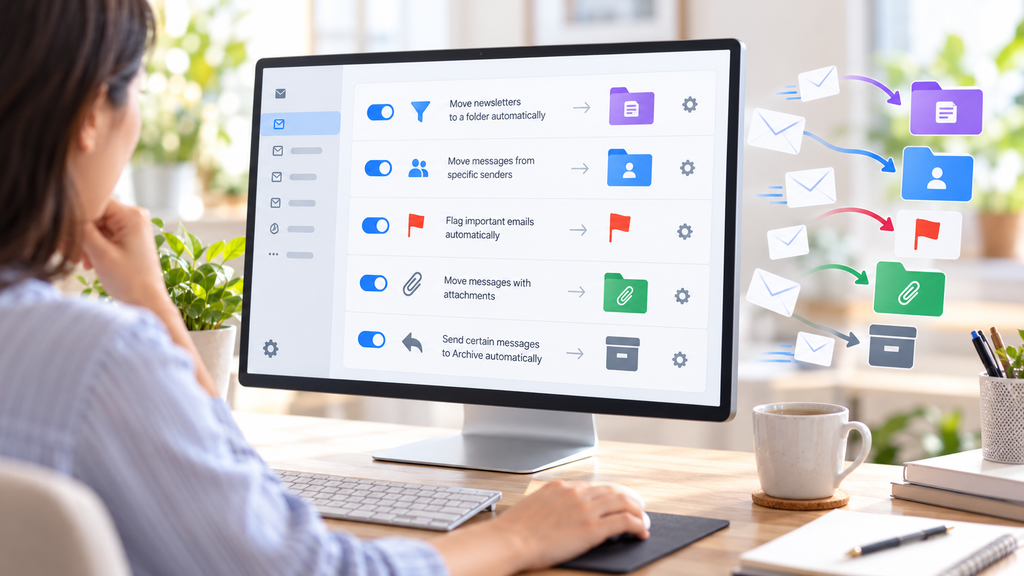
Outlook rules can often act as silent filters that redirect your incoming mail without your knowledge. While you might assume missing items are trapped in the Junk folder, they are frequently being handled by custom automation. These email filtering rules can move, archive, forward, or even delete messages before you ever see them in your inbox.
Open and inspect your Outlook rules
To begin your investigation, navigate to the settings menu in your application. In the desktop version, look for the “Rules and Alerts” manager under the File tab. If you are using the web interface, access the “Rules” section within your Mail settings to view your active configurations.
Find rules that delete, archive, forward, or move messages
Scan your list for any criteria that might affect incoming traffic. Pay close attention to rules that trigger actions like “move to folder,” “delete,” or “forward to.” These Outlook rules are the most common reasons for missing correspondence that bypasses the standard spam filters.
Disable or edit a rule that causes false positives
If you identify a rule that seems too broad, try disabling it temporarily. By toggling the rule off, you can test whether your expected messages return to the inbox. If the issue resolves, you may need to edit the rule to include specific exceptions or refine the conditions.
Check rules in Outlook on the web and desktop separately
It is important to remember that settings may not sync perfectly across all platforms. You should verify your configurations in both the desktop client and the web browser to ensure no hidden rules are active in one environment but not the other.
Place important rules in the correct processing order
The sequence of your rules matters significantly. Outlook processes these instructions from top to bottom, meaning a “stop processing more rules” command can prevent subsequent filters from running. Ensure your most critical rules are positioned at the top of your list to maintain control over how Outlook messages moved automatically are handled.
Remove unfamiliar rules that could indicate account compromise
If you discover rules you do not recognize, especially those involving forwarding or automatic deletion, take immediate action. These could be signs of unauthorized access to your account. Delete any suspicious entries immediately and consider updating your security credentials to protect your data.
| Rule Action | Potential Impact | Risk Level |
|---|---|---|
| Move to Folder | Organizes mail into specific subfolders | Low |
| Forwarding | Sends copies to external addresses | High |
| Delete | Permanently removes incoming mail | High |
| Archive | Moves mail to the Archive folder | Low |
Adjust Microsoft Outlook Junk Email and Blocking Settings
You can take full control of your email security and learn how to check spam folder in Outlook by adjusting your junk email and blocking preferences. While many users wonder where to find spam folder in outlook, the real power lies in configuring how the application handles incoming messages before they are even sorted.
Choose the appropriate junk email protection level
Outlook provides several levels of protection to help you manage unwanted mail. You can choose between settings that range from no automatic filtering to a strict mode that only allows messages from your contacts.
- No Automatic Filtering: Only moves messages from blocked senders to the Junk folder.
- Low: Moves only the most obvious junk email.
- High: Catches most junk, but may occasionally flag legitimate messages.
- Safe Lists Only: Only allows mail from people on your Safe Senders list.
Review blocked senders and blocked domains
Managing your blocked senders Outlook list is a vital step in maintaining a clean inbox. By adding specific addresses or entire domains to this list, you instruct Outlook to automatically reject or move those messages to the junk folder.
Regularly auditing this list ensures that you do not accidentally block legitimate communication. If you notice a pattern of unwanted mail from a specific provider, blocking the entire domain is an efficient way to stop the clutter.
Understand the difference between Safe Senders and blocked senders
It is important to distinguish between these two features to optimize your Outlook junk email settings. Safe Senders act as a whitelist, telling the system that you trust these sources regardless of the content.
Conversely, blocked senders act as a blacklist. While Safe Senders ensure delivery, blocked senders force the system to filter messages more aggressively. Using these tools in tandem creates a balanced environment for your daily correspondence.
Check whether an administrator controls your organization’s settings
In many professional environments, your ability to change these settings may be limited. If you find that your options are grayed out, your organization likely enforces a global security policy.
Recognize Microsoft 365 and Exchange mailbox restrictions
Microsoft 365 and Exchange administrators often apply strict rules to protect the entire network from phishing and malware. These restrictions override individual user preferences to ensure consistent security across the company.
Contact your administrator when settings cannot be changed
If you are unable to modify your blocked senders Outlook list or adjust your protection levels, reach out to your IT department. They can provide guidance on company policy or whitelist specific addresses that are essential for your workflow.
Troubleshoot Missing Emails That Are Not in Junk
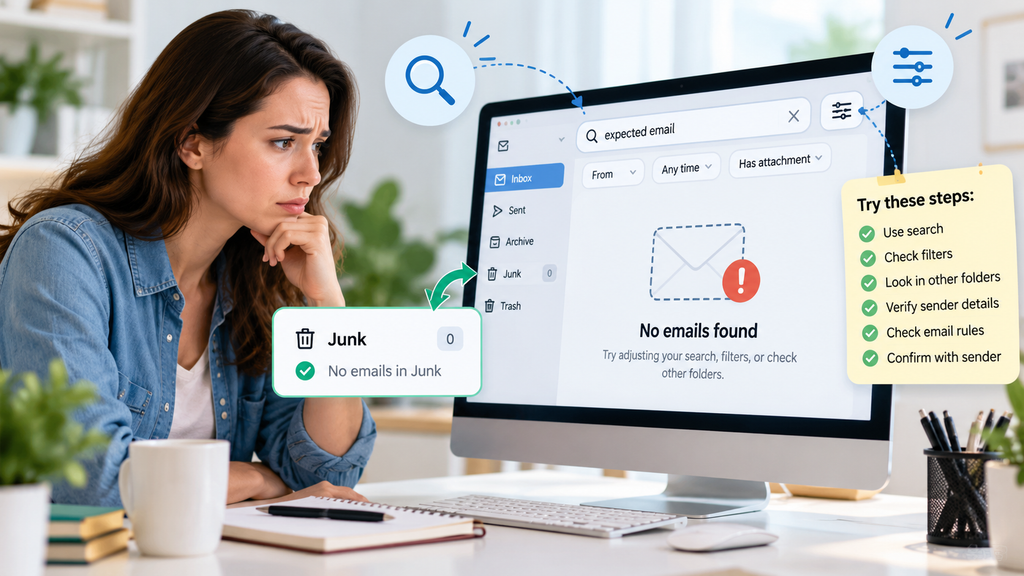
Sometimes, your missing emails are hiding in plain sight rather than in the junk folder. Knowing how to check spam folder in outlook is a useful first step, but you should also check other folders when a message cannot be found.
When you cannot locate a message, it is easy to assume it was caught by the outlook email spam folder, but other factors often cause these issues. A systematic review of your mailbox settings can help you recover important correspondence quickly.
Check Deleted Items and the Archive folder
If you do not see your message in the inbox, verify the Outlook Deleted Items folder first. It is possible that a rule or an accidental swipe moved the item there. Similarly, check your Outlook Archive folder, as messages are sometimes moved there during routine cleanup or by mistake.
Look in Focused and Other inbox tabs
Modern versions of the application often sort incoming mail into two distinct tabs. If you use the Focused Inbox feature, check the “Other” tab to see if your message was filtered away from your primary view. This is a common reason for missing emails in Outlook that appear to have vanished.
Review conversation view and collapsed message threads
When conversation view is enabled, Outlook groups related messages into a single thread. You might find that your missing email is actually nested inside a collapsed thread. Click the small arrow next to a subject line to expand the conversation and reveal all hidden replies.
Search across all mailboxes and folders
If you still cannot find the item, use the search bar to look across all folders. Ensure your search scope is set to “All Mailboxes” rather than just the current folder. This broad search is the most effective way to track down misplaced items.
Check forwarding, automatic replies, and connected accounts
Your account might have active forwarding rules that redirect incoming mail to a different address. Additionally, check if you have connected other email accounts to your profile, as messages might be arriving in a secondary mailbox. Automatic replies or server-side rules can also move messages before they ever reach your inbox.
Confirm that the sender used the correct email address
Sometimes the issue lies with the sender rather than your settings. Verify that the sender has your current and correct contact information.
Check for spelling errors in the recipient address
Even a minor typo in your email address will prevent a message from reaching your server. Ask the sender to double-check the spelling of your address in their sent items folder.
Ask the sender to verify delivery or bounce-back notices
If the sender received a bounce-back notification, it contains specific error codes explaining why the delivery failed. These details are invaluable for diagnosing server-level blocks or connectivity problems.
| Troubleshooting Step | Primary Goal | Action Required |
|---|---|---|
| Folder Review | Locate misplaced mail | Check Deleted and Archive |
| Tab Verification | Check Focused/Other | Toggle between inbox views |
| Search Scope | Find hidden items | Search all mailboxes |
| Rule Inspection | Identify redirects | Review forwarding settings |
Recover Messages Automatically Removed From Junk
Outlook employs specific Outlook Junk Email retention policies that dictate how long messages remain in your account before they are purged. These automated cleanup processes help keep your mailbox storage optimized by removing old, unwanted content without manual intervention.
Check the Junk Email folder’s retention period
Most organizations set a default retention period for the Junk Email folder, often ranging from 14 to 30 days. Once this time limit expires, the system automatically deletes the messages to free up space.
Look for the recovery option for recently deleted messages
If you notice a missing email, check your “Deleted Items” folder first. Sometimes, messages moved out of the Junk folder by automated rules or accidental clicks end up in this secondary location.
Use Recover Deleted Items when the message is no longer visible
When a message is not in your Deleted Items folder, you can use the Recover Deleted Items Outlook feature. This tool allows you to restore items that were recently purged from your mailbox.
- Right-click the Deleted Items folder.
- Select the option to recover items recently removed from this folder.
- Review the list for your missing email and select “Restore Selected Items.”
Understand when recovery may not be possible
Recovery is not always guaranteed, as it depends heavily on your specific account configuration and organizational policies. If a message has been permanently purged, it may no longer be accessible through standard user interfaces.
Account for retention limits and permanent deletion
Several factors can prevent the successful restoration of your data. Consider the following limitations that might impact your ability to retrieve lost messages:
| Factor | Impact on Recovery |
|---|---|
| Retention Policy | Limits the window for recovery. |
| Permanent Deletion | Removes data beyond user access. |
| Admin Cleanup | Overrides individual user settings. |
Contact Microsoft 365 support or your email administrator promptly
If you are missing a business-critical email, do not wait to take action. Contact your IT department or Microsoft 365 support immediately to see if they can perform a server-side recovery before the data is overwritten by system backups.
Improve Your Email Security
Keep important messages accessible by managing trusted senders, reviewing Outlook rules, adjusting junk settings, and using proven recovery methods when emails disappear.
Conclusion
Managing your digital correspondence requires knowing how to check spam folder in Outlook and taking a proactive approach to ensure important messages reach your inbox. You now understand that Microsoft labels its spam area as the Junk Email folder, though the specific location varies across web, desktop, Mac, and mobile interfaces. When you check Junk Email in Outlook, prioritize safety by inspecting sender details before interacting with any links or attachments.
Maintaining a clean inbox involves more than just periodic monitoring. You can improve your delivery rates by marking legitimate messages as Not Junk and adding trusted contacts to your Safe Senders list. Regularly auditing your automated rules and junk protection settings provides an extra layer of security against unwanted clutter.
If a critical message remains elusive, expand your search beyond the Outlook spam folder. Investigate your Deleted Items, Archive, and focused inbox tabs to locate missing communications. Utilizing these recovery options ensures you stay connected to the information that matters most to your daily workflow.
FAQs
How to check spam folder in Outlook across different devices?
To how to check spam folder in outlook, you should look for the folder labeled Junk Email in your folder list. In Outlook on the web and the new Outlook for Windows, this is located in the left-hand navigation pane. If you are using the Outlook mobile app on iOS or Android, tap your account icon in the top left and select Junk from the menu. For classic Outlook for Windows or Outlook for Mac, ensure your account is expanded in the sidebar to reveal the folder.
Why can’t I see the Outlook email spam folder in my sidebar?
If you are wondering where to find spam folder in outlook and it is not immediately visible, your mailbox folders may be collapsed. Click the small arrow or chevron next to your email address in the left-hand sidebar to expand the list. If you still cannot find it, use the search bar and select All Folders to locate specific messages that may have been filtered. In some versions of Microsoft Outlook, the folder may be hidden behind the More or Folders option in the navigation menu.
How to check my spam folder in Outlook and review the contents safely?
When you how to check my spam folder in outlook, safety is paramount. Microsoft recommends sorting your messages by date or sender to identify legitimate emails quickly. Before clicking any links, hover your mouse over the sender’s display name to verify the actual email address. Look for phishing indicators such as urgent requests for credentials, unusual spelling, or attachments you were not expecting. Avoid downloading images or clicking “Enable Content” on any document within this folder unless you have confirmed the sender is authentic.
What is the best way to view spam folder in Outlook and move a valid message back to the Inbox?
To view spam folder in outlook and restore a misclassified email, right-click the message and select Report > Not Junk or Junk > Not Junk. This action not only moves the email to your Inbox but also helps train the Microsoft 365 filtering system to recognize future messages from that sender as safe. You should also verify that images and attachments appear correctly after the move and ensure the message was not a phishing attempt before replying.
How do I prevent important messages from ending up in the Outlook email spam folder?
The most effective way to manage your outlook email spam folder is to add trusted contacts to your Safe Senders List. In Outlook on the web, navigate to Settings > Mail > Junk email to add specific addresses or domains. Additionally, if you find a legitimate email in Junk, marking it as Not Junk is critical. Regularly reviewing your Outlook Rules is also recommended, as a poorly configured rule may be automatically moving or archiving messages before they even reach your Inbox.
Can I recover messages that were automatically deleted from my Junk Email folder?
Microsoft Outlook typically has a retention period (often 10 or 30 days) after which items in the Junk Email folder are permanently deleted. If a message has disappeared, look for the Recover items deleted from this folder link at the top of the folder or in the Deleted Items section. If the message is not found there, it may have exceeded the retention limit set by your Exchange administrator, and you may need to contact your organization’s IT support for advanced recovery options.
What is the difference between “Report Junk” and “Report Phishing” in Outlook?
When you view spam folder in outlook, you have different reporting options. Use Report Junk for unwanted commercial advertisements or newsletters. Use Report Phishing for malicious messages designed to steal your passwords or financial information. Reporting these correctly helps Microsoft improve security for all users. If an email is legitimate but ended up in the wrong place, always use Not Junk instead of simply dragging the message to the Inbox.
Why am I missing emails that aren’t in the Outlook email spam folder?
If an email is missing but not in the outlook email spam folder, check your Focused Inbox and toggle to the Other tab. You should also inspect your Archive and Deleted Items folders. Occasionally, Outlook Rules created on one device (like a desktop) may move messages to subfolders that are not easily visible on mobile. If you are using a Microsoft 365 business account, your administrator might have organization-wide filters that block certain messages before they even reach your personal junk folder.